The XPOP Menu plugin provides fully customizable popup menus for XSI that open at keypress.
The customization is done directly inside the invoking script ---
a comprehensive walkthrough is included in this document, so little to no previous scripting experience will be required to create simple XPOP menus.
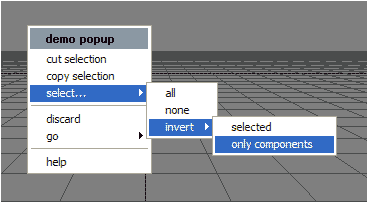
example for an xPOP menu
download links are at the bottom of the page.
1. Installation
Start XSI then drag-and-drop the .xsiaddon file into the application in order to install it into the USER directory. In case you want to use a different directory for the installation, go to the File menu and select Addon->Install to install the provided .xsiaddon file into a directory of your choice.
2. Usage
Upon installation the addon registers the custom command "DisplayPop". This command will be used inside of user defined commands that will then be tied to hotkeys. Here is a basic example for such a user defined script:
'calls the plugin command and returns the index of the picked menu entry:
var returnValue = DisplayPop("New Scene;---;Test;Start &Face Robot;---;Make &Box");
LogMessage("you have chosen entry number " + returnValue);
switch(returnValue)
{
case 1:
NewScene(); 'more custom code goes here
break;
case 2:
LogMessage("Test menuentry chosen.");
break;
case 3:
LogMessage("April fools!!.");
break;
case 4:
CreatePrim("Cube", "MeshSurface");
break;
default:
LogMessage("cancelled popup menu");
}
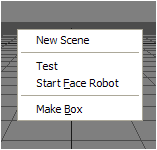
resulting xPOP menu
(If you're new to scripting, skip reading right up to the walkthrough section below.)
3. "DisplayPop" command syntax
general syntax:
returnValue = DisplayPop( strMenuDescription, strTitle, strStyle )
parameter description:
strMenuDescription: The input parameter string passed to the DisplayPop command consists of the menu entries, separated by ;(semicolons) - See the example script
A separator line can be inserted by using ---(3 dashes) as the menu entry
For a menu entry hotkey, insert a & (ampersand) before the character you want as the hotkey ("Make &Box").
For submenus, proceed as follows: instead of a usual menu entry, use the caption of the submenu immediately followed by the submenu menu entries inside brackets []. Here's an example for a simple submenu which should make clear how it works:
For the menu in the example image at the top of this document, the following argument string was used:
Note that nested submenus can be used.
strTitle: The title string of the popup menu (see image example at the top of this page). If left empty, no title is displayed.
strStyle: The style/background color of the title row. This can be one of: simulate, render, animate, model, blu, brite, nero, grad, plain.
returnValue: The function returns the index of the picked menu entry, which can subsequently be used for executing xsi commands, custom commands or other script bits.
4. Example walkthrough
Install as advertised. As an example, we will now create the "HIDE PRO" popup menu which we will later map to "alt-h", extending the default "Hide/Unhide Selection" command hotkey "h".
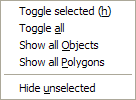
We will now create our own custom command which will display the popup menu and execute appropriate pieces of script, depending on which menu entry had been picked. Again, no previous scripting experience required as this is a goose step type walkthrough! Don't go away.
Pick "Plugin Manager" from XSI's File menu. This is the standard procedure for creating custom commands.
Inside the Plugin Manager, right-click "User Root" and select "New > Addon Directory" from the menu -- we will create the new command inside it's own addon directory so it can be easily distributed later on.
For the addon name, best use something like "my popups" as you might want to create additional popup commands going inside that same addon directory later.
Expand "User Root" and locate the addon folder you just created. Expand it too.
Right click "Plug-ins" and from the menu, select "New > Command" -- This will display the "new command" wizard.
Inside the wizard, enter "HideProPopup" as the command name and set the scripting language to JScript
Ok the wizard's finished already, now hit the "Generate Code" button. If you're new to scripting, what appears now might put you into a state of mild shock. Don't go away.
This is the command definition for our new popup command. The only part of the code that we need to change is the "HideProPopup_Execute" function at the bottom. Scroll down now inside the script editor window to find it:
function HideProPopup_Execute( )
{
Application.LogMessage("HideProp_Execute called");
//
// TODO: Put your command implementation here.
//
return true;
}
replace the code from the Execute function with the following code:
function HideProPopup_Execute( )
{
var iCmd = DisplayPop("Toggle selected (&h);Toggle &all;Show all &Objects;Show all &Polygons;---;Hide &unselected");
switch(iCmd)
{
case 1: ToggleVisibility(null, null, null);
break;
case 2: ToggleVisibility("*", null, null);
break;
case 3: UnhideAll(null);
break;
case 4: UnhideAllPolygons();
break;
case 5: HideUnselected(null, null);
break;
}
return true;
}
Here's what happens inside the new fuction: The first line "var iCmd = DisplayPop("Toggle selected (&h);Toggle &all;Show all &Objects;Show all &Polygons;---;Hide &unselected");" does several things: It displays the customized popup menu (DisplayPop command), waits for the user to pick a menu entry, and then assigns the index of the picked menu entry to the variable iCmd. This would be 1 for "Toggle selected", 2 for "Toggle all", 3 for "Show all objects", 4 for "Show all polygons", and 5 for "Hide unselected". If the user had picked "Toggle selected", the variable iCmd would have the value 1 for the rest of the code.
The following "switch" statement ensures that from the following block of code (everything within the following {...} brackets) , only those lines of code are executed following the correct case statement. Which "case" is correct depends on the value of the variable iCmd. If it is 1 for example, only the "ToggleVisibility(null, null, null); break;" commands are executed. "break" in this case breaks out of the switch block. Obviously if the user had picked "Toggle selected", XSI's ToggleVisiblitly command would by now have toggled the visibility of all selected objects.
Finally, "return true;" informs XSI that everything went alright.
Once you save this file, the command HideProPopup will be registered within XSI and you will be able to map it to the "alt-h" using the keyboard mapping dialog box (via XSI's File menu). You'll find the command inside the Custom Script Commands group of the dialog box.
You can package your plugin commands as an .xsiaddon file by right clicking the addon directory in the Plugin manager and choosing package as .xsiaddon. I would appreciate if you would send in your custom plugins for me to share them here!
Okay, walktrough's done with. Customization options should be quite clear now. See the "command syntax" section for details on the DisplayPop command. You can use the script editor log to copy and paste log lines of all standard XSI UI actions you perform into the appropriate part of the switch block.